In-game spending and parental controls: a practical guide
Free-to-play games earn their money from a minority of players who spend. The steps below are for anyone who wants to make sure that spending is always a decision, never a reflex. That includes parents.
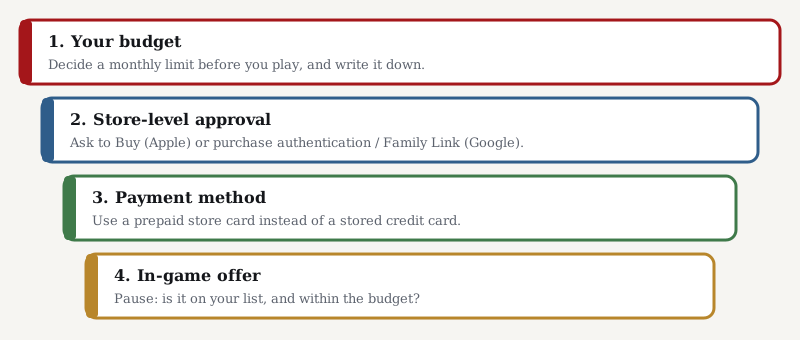
1. Set a budget before you play
Decide on a monthly amount, including zero, before you have seen any offers. Write it down. It is much easier to stick to a limit set in advance than one set while a countdown timer is running.
2. Turn on purchase approval in the app store
Both major mobile platforms can require a password, biometric check or a parent’s approval before any purchase. Menu names change between versions, so search your settings for the terms below.
- Apple (iPhone, iPad): Screen Time → Content & Privacy Restrictions → iTunes & App Store Purchases, where in-app purchases can be blocked. For children’s accounts, Ask to Buy in Family Sharing sends each purchase request to a parent.
- Google Play (Android): in the Play Store settings, turn on Require authentication for purchases for all purchases. For children’s accounts, Google Family Link lets a parent approve purchases.
- PC stores: Steam and other PC storefronts offer family or parental settings. Check the options of the store or launcher the game was installed from.
3. Choose the payment method carefully
Removing a saved credit card from the store account and using prepaid store cards instead puts a hard ceiling on spending. It also makes each top-up a separate, deliberate step.
4. Pause before any offer
Games use several currencies, bundles and timed offers. Before buying, ask three questions: What does this cost in my own currency? Was it on my list before I saw it? Is it within the budget? If the answer to any of them is unclear, wait until the timer has gone. Similar offers usually come back.
Your rights in the EU
Buying in-game content is a consumer contract for digital content. Under EU consumer law you normally have a 14-day right of withdrawal from online purchases, but for digital content it usually ends once delivery starts and you have expressly agreed to that and acknowledged losing the right. That is typically what happens when you tap “buy” in a game. European consumer authorities have also published principles on in-game virtual currencies, saying prices should be shown clearly in real money too. If you believe a purchase was misleading, you can complain to the game provider, to the app store, or to your national consumer authority.
This section is general information, not legal advice. Rules and store settings change. For a specific problem, contact your national consumer protection body.
If spending or gaming worries you
If you or someone close to you finds it hard to stop playing or spending, you are not alone. Talk to someone you trust, your doctor, or a support service in your country.
Further reading
About this page
Diagrams on this page are original SVG graphics created by teneris.online, not game assets. teneris.online is not affiliated with, endorsed by or sponsored by Plarium Global Ltd. Where this page differs from Plarium’s official information, Plarium’s information prevails. Found a mistake? See our corrections procedure.